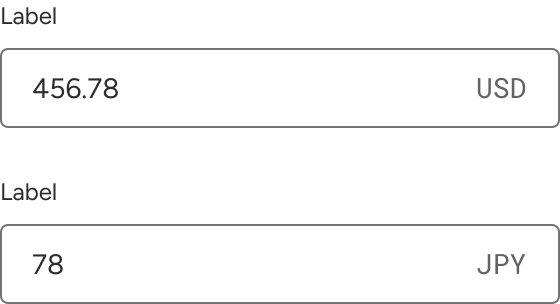
Input - Currency
A currency input is a single-line text field with behaviors to support currency functionality.
Code documentation
Anatomy
The number input component is made up of 11 elements.
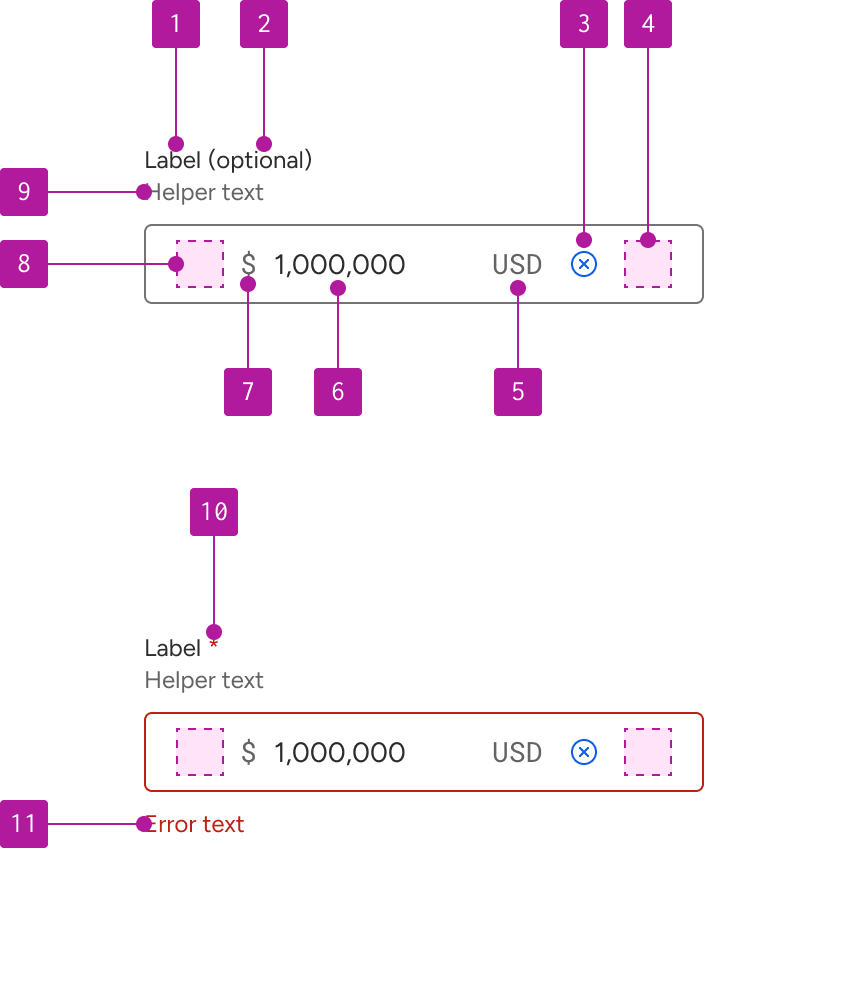
- Label
- Optional indicator
- Clear button
- Right slot
- Suffix
- Value
- Prefix
- Left slot
- Helper text
- Required indicator
- Error text
Variants
Currency input extends the input component which allows for the use of its properties, events, slots, methods, and styles. Refer to the input documentation for detailed information on these features.
The following variants are unique features to currency input.
Commas
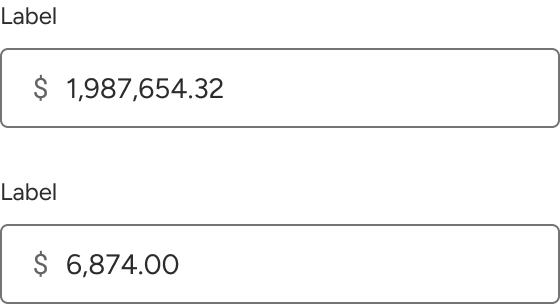
By default, currency inputs automatically format the value to separate groups of thousands with a comma. The commas can not be manually deleted or repositioned within the value.
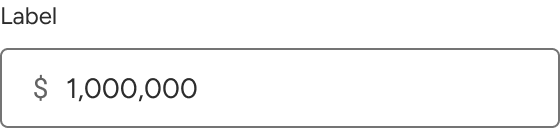
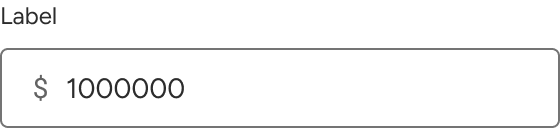
Commas can be hidden if needed. When hidden, the value will display without any thousands separators.
Decimals
The currency input also automatically displays decimals up to the hundredths place by default. The decimals can not manually be edited. If a whole number is passed into the value, two zeros will display to the right of the decimal.
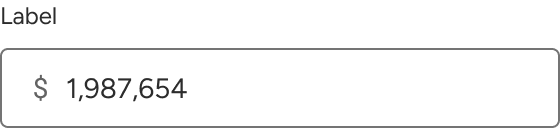
When hidden, the whole number is displayed. If a value has a decimal and the property changes to hide the decimal, the decimal remains in the value until manually removed.
Minimum value
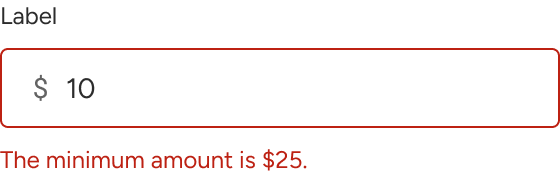
A minimum value can be set for the currency input. The limit is not inherently enforced by the input and should be handled by the user. The following example shows how a minimum value can be incorporated as part of a broader validation effort.
Maximum value
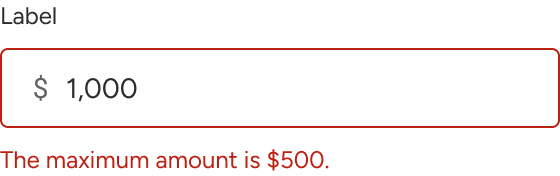
A maximum value can be set for the currency input. The limit is not inherently enforced by the input and should be handled by the user. The following example shows how a maximum value can be incorporated as part of a broader validation effort.
Prefix
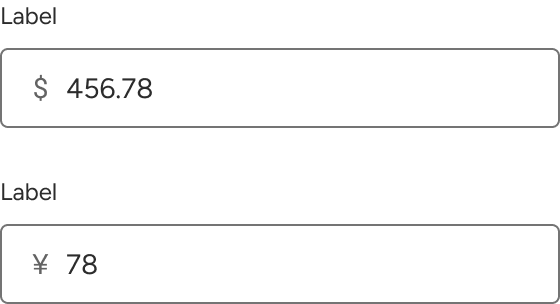
The currency input uses the base input’s prefix property to display currency symbols. The dollar symbol ($) is displayed by default, but may be customized.
Suffix
The currency input can also use the base input’s suffix property to display currency codes. The suffix value is empty by default.